Command line
Install the boxctl CLI and manage boxes from your own terminal.
The boxctl CLI does everything the dashboard does, from your own
shell. It talks to the same backend as the dashboard and authenticates
as you with a personal API token.
Install
Linux and macOS:
curl -fsSL https://boxctl.io/get.sh | bash
sudo install boxctl /usr/local/bin/
Windows: download the latest .zip from the
releases page and put
boxctl.exe somewhere on your PATH.
Edge build
To track the tip of main instead of the latest tagged release, use the
unsigned edge build (Linux and macOS only):
curl -fsSL https://boxctl.io/get-edge.sh | bash
sudo install boxctl /usr/local/bin/
Tab completion
The install scripts also set up tab completion for your shell (bash,
zsh or fish): subcommands, flags, and the names of your own boxes, so
boxctl ssh my-b<TAB> finishes the name for you. To pick it up in the terminal you installed from, run exec bash (or
exec zsh) -- no need to log out -- or just open a new terminal.
Bash completion needs the bash-completion package; the installer
installs it with your package manager (apt, dnf, yum, zypper, pacman,
apk or brew) when it is missing, and adds a line to ~/.bashrc that
loads it.
It works by writing a completion script to your shell's per-user
completion folder and, for bash and zsh, adding one line to ~/.bashrc
or ~/.zshrc that loads it. To skip this, run the installer with
BOXCTL_NO_COMPLETION=1:
curl -fsSL https://boxctl.io/get.sh | BOXCTL_NO_COMPLETION=1 bash
To set it up by hand instead:
echo 'source <(boxctl completion bash)' >> ~/.bashrc   # bash
echo 'source <(boxctl completion zsh)' >> ~/.zshrc     # zsh
boxctl completion fish > ~/.config/fish/completions/boxctl.fish
Box names are looked up live, so completion needs you to be logged in.
Log in
boxctl login
Your browser opens a page on boxctl.io: sign in if you aren't, check that
it shows the same code as your terminal, and click Approve. The
terminal is logged in at once. Over ssh, or anywhere the browser is on
another computer, use boxctl login --no-browser and open the printed
link there instead.
For scripts, a token from the API tokens page works without any of that:
BOXCTL_TOKEN=... boxctl ls    # every command uses the variable
boxctl login --paste          # or save it: paste at the hidden prompt
pbpaste | boxctl login        # from the clipboard
boxctl login < token.txt      # from a file
The token is stored in ~/.boxctl/config.json with owner-only
permissions and is only ever sent to the boxctl API.
Everyday commands
boxctl ls                 # list your boxes
boxctl images             # list available images
boxctl sizes              # list box sizes (small, medium, large)
boxctl create my-box      # boot a new box (small by default)
boxctl create big-box --size large
boxctl ssh my-box         # open a shell on it
boxctl port-forward my-box 3000   # localhost:3000 -> port 3000 in the box, for you only
boxctl expose my-box 3000         # a public HTTPS link to port 3000, for anyone
boxctl pause my-box       # snapshot and stop
boxctl resume my-box      # bring a paused box back
boxctl rm my-box          # destroy it
boxctl tui                # all of the above in one full-screen view, k9s-style
boxctl version
boxctl ssh opens an interactive terminal over the same secure
WebSocket the dashboard uses. No SSH keys are involved.
boxctl expose is covered in Public URLs.
boxctl exec, boxctl claude and boxctl kilo, for running an AI
coding agent's work in a box, are covered in AI agents.
Watch them all at once
boxctl tui is the same account as a full-screen view that refreshes
itself, laid out like k9s: your boxes in a table,
the keys that act on the selected one in the header, and : commands
to switch views.
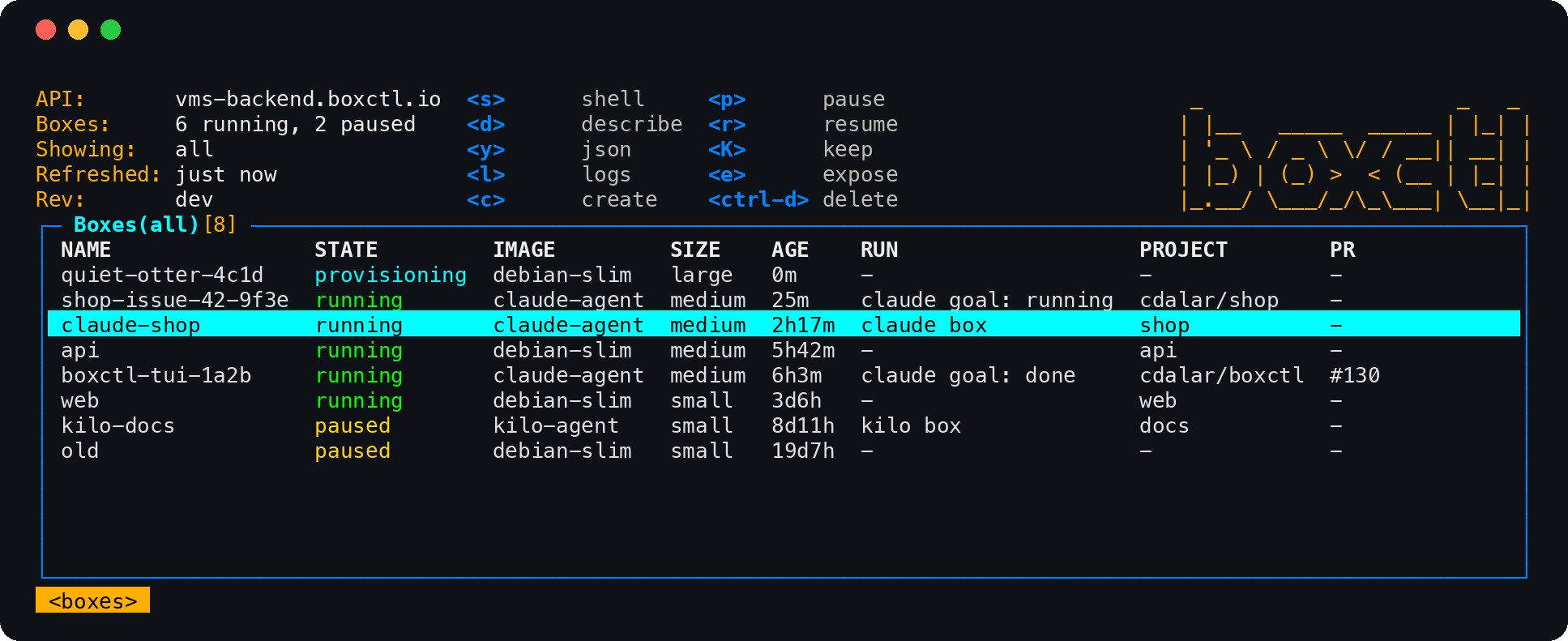
s          open a shell on the selected box       d / y   describe, or the raw JSON
p / r / K  pause, resume, keep                    l       the logs of a claude --goal run
c          create a box (name, image, size)       e       expose a port as a public URL
ctrl-d     destroy it (asks first)                /       filter the table as you type
0 / 1 / 2  all / running / paused boxes           ?       every key
:boxes, :urls, :images, :sizes and :backups switch the table;
r in :backups restores a backup as a new box, and :q quits. Every
key runs the matching command above, so nothing happens in the TUI that
boxctl could not do from a script.
Interrupting a create
boxctl create sits on Creating until the backend answers, which
is once the box has booted and, with --apply-file, once its script
has run to the end (minutes, for the larger templates). Pressing
Ctrl+C there only stops the waiting. The create itself runs on the
server and carries on without you: the box boots, the script finishes,
and the box turns up in boxctl ls as soon as it is up, reading
applying until its script is done. Nothing is rolled back.
If you did not want the box after all, destroy it as usual:
boxctl rm my-box
Two things the interrupted command never got to do:
- Print the result. Run
boxctl lsto see the box. If it is not there within a few seconds, the request never reached the server (or the create failed on it), and runningboxctl createagain is safe. Don't re-run it under the same name before then: the first create is still working on that name. - Set
--idle-ttl. That is applied after the create returns, so an interrupted box keeps the server's default (an hour). If the TTL matters, destroy the box and create it again.
With --apply-file, the script's output that was being relayed to your
terminal keeps going into a log on the box itself, so nothing is lost
there either: open a shell with boxctl ssh to read the rest.
Log out
boxctl logout
This forgets the token on your machine. To make sure it can no longer be used anywhere, also revoke it on the API tokens page.
Source
The CLI is open source at github.com/cdalar/boxctl.